Showing posts with label linux. Show all posts

Friday, November 09, 2012

A poor man's Notational Velocity on Linux

I use Notational Velocity on my Mac all the time. It holds all my notes, lists and any other snippet of text. I love the interface and simplicity, and most of all I love the simple use of text files in Dropbox as a store. This way I can access my notes anywhere, without needing NV to be installed. I also love the global key binding feature so that I can quickly raise it with Cmd+Shift+N.

At work (more on this soon) I started using a Thinkpad x230 running Archlinux. But I sorely missed NV. I experimented with nvpy, but it didn't cut it for me at all. The tkinter UI looks bad in a Qt/GTK desktop, notes are saved in JSON by default, and the text file option is a sort of hack which stores the title in the first line, messing up the notes in NV. So rather than write my own version, I got an almost as nice, and definitely more powerful NV equivalent in Linux.

I am going to assume you use a standard desktop environment like KDE or that your window manager is EWMH compatible. You'll need:

  • To know how to define custom global shortcuts to run a command. For KDE this is System Settings -> Shortcuts and Gestures -> Edit -> New -> Global Shortcut -> Command/URL
  • gvim
  • wmctrl (available in Arch community repo).

Create a new shortcut which should launch the following command string

gvim --remote-silent +':lcd %:p:h | :au FocusLost * :wa' \
'/home/nikhil/Dropbox/Notational Data' && wmctrl -a 'GVIM'

You should edit the path to point to your Dropbox/NV directory. Now whenever you press the global shortcut combination you should see gvim with a list of all files (notes). Press Enter on a file to open it.

We use remote-silent to make sure that gvim uses an existing window if it is already open. The :lcd %:p:h option sets vim's current working directory to the NV directory. This will be useful later. We use the autocommand FocusLost to save the file whenever the gvim window loses focus (simulating NV's autosave feature). Finally wmctrl raises the window to the top by matching the string to the title. If you use gvim on a regular basis (I use terminal vim) and have other windows open, you'll have to tweak this.

So this setup is completely like NV, except for one divergence. Whereas NV searchs the note title and content together, our system will treat it as two flows. To search note titles/file names use / when in the main view. As part of my standard vim plugin set I have ctrlp and ack.vim* which will serve us well here. To always have access to note titles use ctrlp. I map it to sf so that I get quick fuzzy find. Similarly to search note contents I map sd to trigger ack.vim. This is where setting vim's current directory is important. Both plugins will use it as the base search directory.

This NV approximation is fast and works almost as well as the original, although without a slick interface. But nice fonts and a good vim colour scheme come pretty close.


* You'll need ack installed to use ack.vim. ack does not include text files by default. Put --text in ~/.ackrc to do so.

Sunday, September 04, 2011

Toolset

Inspired by The Setup and Pratul’s post, here is how I ‘get my work done’.

Hardware

I currently use a four-core i7 15" Macbook Pro with 8GB of RAM and a 500GB HDD. I love it. For backups I have a Western Digital 160GB hard drive. I use cheap Skullcandy earphones when I need them (I usually prefer speakers).

Operating System

I used to be on Arch Linux until I got the MBP. Now I use OS X Snow Leopard. I still run Arch + KDE on a VirtualBox instance to occasionally hack on KDE. With 8GB of RAM, both keep running snappy :)

Running OSX might come as a surprise considering my FOSS roots. But my software stack is such that it makes no difference what UNIX I use really.

Software

Considering I use the computer all day, the number of applications I actually run is tiny.

I use Firefox for browsing. I hide all chrome except the tab bar, and use the excellent Pentadactyl extension to get vim key bindings and other keyboard driven goodness to Firefox.

For viewing PDFs, I use Preview. The rare photo management is done with iPhoto. Music needs are satisfied with Clementine (my iTunes resides in the Trash), while VLC handles video.

I do use the excellent Notational Velocity for note taking and idea jotting and the like. It fast, it stays out of the way and is easy to sync if I have to.

iCal, synced with Google Calendar, is used for todos and submission reminders.

And that is all the GUI apps I usually run. Which is why it doesn’t matter what UNIX I use, since most of my work is in the shell.

Office suite you say? I find Google Docs suffices, to the point that if somebody sends me MS formats, I upload them to Google Docs. The Gmail web interface is also unbeatable so mail stays there.

Accessories include Dropbox, Temperature Monitor Lite, gfxCardStatus to manually control which graphics card is in use, ShiftIt to position windows, afloat to allow ‘Always on Top’ like KWin, Growl for notifications and Tunnelblick for VPN management.

Now we come to the terminal. My terminal emulator is iTerm. I have only one window running maximized, with tmux acting as my ‘window manager’ for shells. It has a slightly customized statusbar, with the solarized colour scheme. The shell is zsh with a custom zshrc based on stuff I pick up around the Internet, with the zsh-git prompt.

This exact same terminal configuration is also available in the Linux VM (including vim configuration) so that I don’t need to switch my behaviour for the different OSes.

For IRC I use irssi although I use it as a total newbie.

And the rest of my day is spent in vim. I do all my long writing in vim — code, articles, blog posts, configuration files — everything. I use the molokai theme rather than solarized for the editor.

Vim plugins

First Tim Pope’s pathogen is indispensible to easily manage other plugins.

a.vim is a convenient little script to toggle between headers and sources.

ack.vim allows the invocation of ack from vim and presents the results in the Quickfix buffer. I map the keystroke ‘sd’ to ack.vim.

fugitive is useful for Git integration with vim, but I don’t use it that much yet except to do blames.

fuzzyfinder is another indispensible script for me. I map ‘sf’ to fuzzyfinder so I can quickly invoke that.

Other plugins I use include nerdcommenter and vim-surround.

My Dream Setup

I would love a standing desk in my hostel room with an external monitor connected to my laptop, the way I worked at Mozilla. I am considering buying a Netgear Ultra 2 NAS to have redundant storage and sharing. Otherwise the MBP works great and is sufficient for now.

Posted via email from nikhil's posterous

Monday, October 27, 2008

Installing Arch linux on the HP DV6910TX

This is a record of my attempt to put Arch (2008.06 Core Dump) on the HP DV6910TX.
Here is my system configuration
  • Intel Core 2 Duo T5750 @ 2.00GHz
  • Ram : 3GB
  • Nvidia GeForce 8400M GS with 256Mb dedicated memory
  • 320Gb harddisk

Partitioning


Here was my original partitioning scheme:
  • C: 308Gb
  • D: (Recovery) ~10Gb
Make sure you create your HP Recovery Discs first!

Since the arch install CD doesn't have ntfsprogs ( it has the packages, but not as part of the setup boot ), I booted from dreamlinux (you can use any liveCD) and used ntfsresize to shrink the C: (/dev/sda1) to 35Gb.

Then I used gparted to create a proper partition layout. Here is how it goes
  • /dev/sda1 - ntfs - 35Gb (C:)
  • /dev/sda2 - ntfs - 10Gb (D:)
  • /dev/sda3 - swap - 4Gb ( to hibernate, you need atleast as much swap as your RAM )
  • /dev/sda4 - extended
  • --- /dev/sda5 - ext3 - 20Gb (/)
  • --- /dev/sda6 - ext3 - 50Gb (/home)
  • --- /dev/sda7 - ntfs - 180Gb (/shared)
After committing these changes I began the installation.

The rest of the settings were normal Arch installation procedures, which can be found elsewhere.

Hardware


Display


The dv6910tx has an nVidia 8400M GS with 256Mb of dedicated memory. Installing the nvidia drivers ( pacman -S nvidia nvidia-utils ) and running nvidia-xconfig generated the required xorg.conf, and the card worked perfectly.

Touchpad


Installing the synaptics package and merging the required changes into xorg.conf ensured that the touchpad worked too, including scroll areas and locking.

CD/DVD drive


Works perfectly without any configuration.

Ethernet


Arch correctly used the r8169 driver

Wifi


Arch was able to identify the card, but there is no hotspot here to test the connection.

Card reader


The 6910 has a 5-in-1 reader from Ricoh. But I could test only for SD cards.

Firewire


Detected fine,, but no device to test.

Power management


Installing Guidance (pacman -S guidance-power-manager) will allow you to quickly view battery performance and perform suspend or hibernate ( I'm using pm-utils ).
To enable different power modes ( governors ), install cpufreq and follow the Arch Wiki Page on CPUfreq.

A special entry has to be made to mount/unmount NTFS partitions. Put the following in /etc/pm/sleep.d/66ntfs:


#!/bin/bash

MOUNTS="/windows/C /shared"

function 66ntfsmount() {
for i in $MOUNTS
do
mount $i
done
}

function 66ntfsumount() {
for i in $MOUNTS
do
umount $i
done
}

case $1 in
hibernate)
66ntfsumount
;;
suspend)
66ntfsumount
;;

thaw)
66ntfsmount
;;
resume)
66ntfsmount
;;
*)
echo "BAD!"
;;
esac


Now make it executable ( chmod +x /etc/pm/sleep.d/66ntfs ).

Webcam


Not tested yet.

NTFS partitions


I installed ntfsprogs and used the fuse.ntfs system to mount ntfs in userspace as read and write. Here are the additions to /etc/fstab


UUID=... /windows/D fuse.ntfs defaults 0 0
UUID=... /windows/C fuse.ntfs defaults 0 0
UUID=... /shared fuse.ntfs defaults 0 0

NOTE: The arch shutdown scripts kill the fuse ntfs system rather than unmounting the drives. To fix this issue edit /etc/rc.local.shutdown and insert the following:


. /etc/rc.conf
. /etc/rc.d/functions

# Unmount NTFS partitions
stat_busy "Unmounting NTFS partitions"
umount /shared
umount /windows/C
umount /windows/D
stat_done

Bluetooth


Device detected. I could scan for my cell phone, but I've yet to figure out how to exchange files.

Hotkeys


If you use KDE4, go to System Settings -> Regional and Language -> Keyboard Layout. Enable keyboard layouts and change the keyboard model to Hewlett-Packard Pavilion ZT11xx. All the keys EXCEPT Quickplay and DVD work after that. The mute key does not turn red, but it does work. Of course it is your job to actually configure application shortcuts to use the keys.

Remote


The volume keys respond. Other keys should be configured to work with the respective applications using application specific settings.

Tuesday, October 16, 2007

Wednesday, May 23, 2007

The problem isn't the community, its the people

After reading
Five crucial things the Linux community doesn't understand about the average computer user
I have a point myself. FIrst of all I disagreed with most of his points.

Second of all the only aim of the Linux community is NOT world domination. Sure we would love more Linux users, and more Non-Microsoft users. But not at the expense of user stupidity. Here are my two cents on why people don't want to change to Linux ( or anything new ).
  1. Change - Change, all the problems in the RealWorldTM are due to this (But more on that some other time). I have observed that there are very few humans who actually want to change. People get an OEM installed WIndows and use it. Heck, some don't even know they use Windows. So try teaching them something else. Most people are dead scared of technology.


  2. Choice - People are uncomfortable with choice, especially when they need to change to accept a different choice. In addition to that, Microsoft's hand holding has dumbed them down to a level, where, when in front of the computer, the user is reduced to an assembly line robot of click here, then here instructions. On the other hand, for the community, choice is what runs the world, it keeps them happy. The very idea that if I don't like something, then I can change it, is like a drug.
As I said before, choice and change are the cause of many problems, and it is often technology that gets blamed. The community's first aim is to solve its own problems, then others. We thrive on choice, on change, on learning new things. And as long as certain standards are followed, choice and change can coexist. And I am sure that the community will not dumb everything down into a nice packaged product, just to get the world to adopt its software. Its is people who have to change, to become the inquisitive beings they once were.

Tuesday, May 15, 2007

Microsoft's unwinnable war

RoughlyDrafted has this absolutely amazing article about why Microsoft is fighting an unwinnable war against Open Source and FOSS. A must read for anyone. It was really well thought out and presented

Monday, April 30, 2007

Downloading Kubuntu

For the last 3 days I have been downloading Kubuntu and now there are about 5 hours left. There are 2 reasons why I want to try out Kubuntu.
  1. I am always looking for new distros to install on my spare partition.
  2. I am hoping that the new X server and *buntu's good hardware support means that my widescreen monitor will work at its default resolution of 1440x900.
So I will do a small review tomorrow.

Sunday, February 11, 2007

Dream Linux 2.2

The February issue of LinuxForYou included Dream Linux 2.2. The LiveCD booted really fast in comparison to other distros, perhaps because it uses a light XFCE environment.

But for its weight it sure looks amazing! A highly Macish look and feel with Engage completing the Dock. The applications installed are also a good mix of commonly used to niche ones. Overall I found Dream had taken the good points of quite a number of distros, put together a nice control panel and easy installer.

So I jumped ahead and installed it on my spare partition. Installation was quite fast with just 7 steps, including partitioning, installation, installing bootloader, which I skipped and creating the user accounts.

DreamLinux too had a common problem I've faced with LiveCDs. The non root user's password is often not set properly, which means when you boot from harddisk, you can't login. Not a nice way to start with Linux. For someone in the know its easy to do a Ctrl+Alt+F1 and change the password, but for new users it can be harrowing.

Overall DreamLinux is a really good distro. Though Arch will still remain my primary distro, since I have it customised to heavily, it is one whose progress I will watch closely. If you are new to Linux I would highly recommend it. If you are not, you already know what you need. With a little tweaking Dream could easily become a Distrowatch top 20er.

Monday, November 06, 2006

Beryl Screenshots

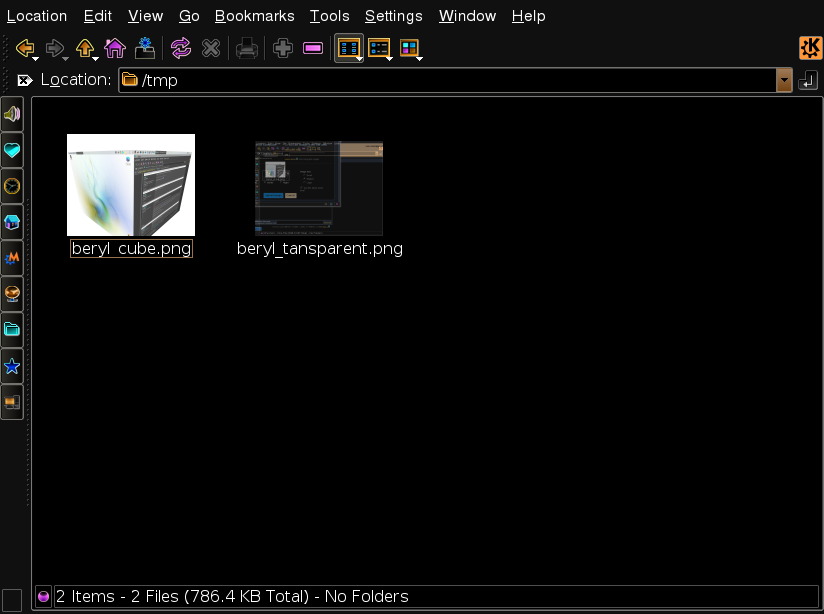
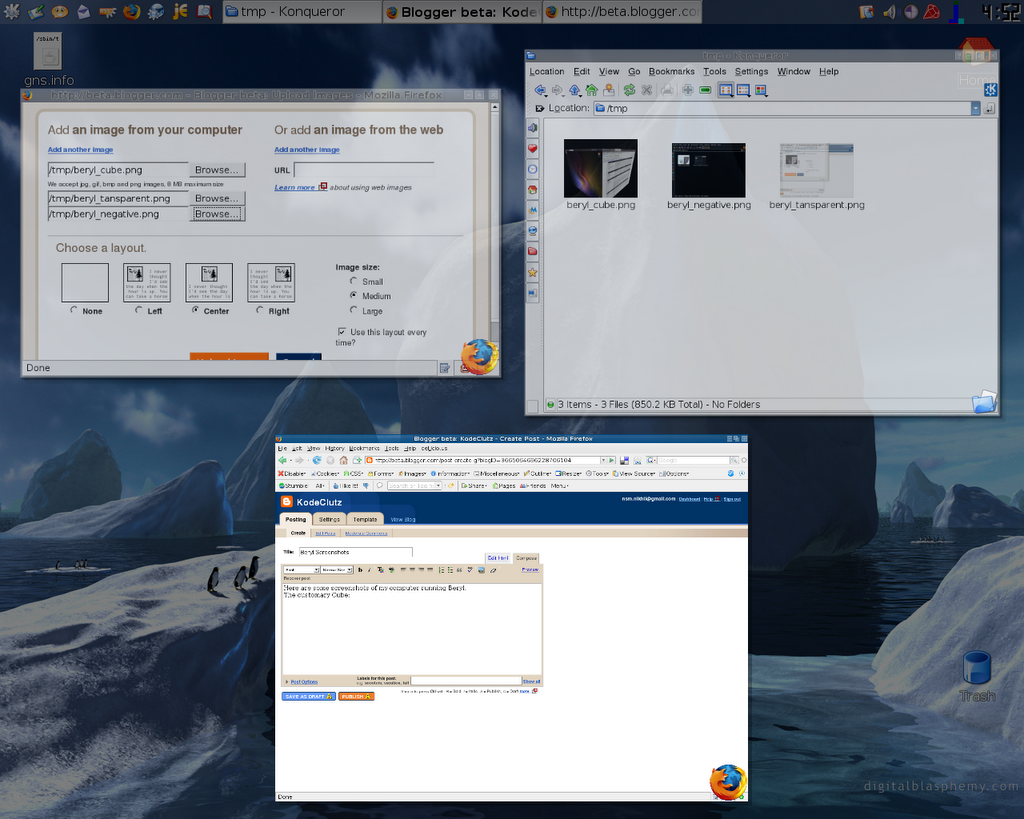
Here are some screenshots of my computer running Beryl.
The customary Cube:


Windows can be made to look like a negative(Konqueror here) and so can the complete desktopHave too many windows and don't want to Alt+Tab, get a view of all the windows on all desktops or on current desktop depending on which screen edge you take the mouse too(configurable)

Transparency. The Konqueror window on top is partially transparent(Alt + mouse scroll) and shows the blogger window beneath

Sunday, November 05, 2006

Beryl is AMAZING!

I have got Beryl working with AIGLX and all its cool effects on an i845 and 256mb ram with almost no difference in performance than non beryl. This is absolutely amazing. The beryl devs are really great. Compiz used to be really slow. Now I can finally have all this eye candy on all the time.